Process Several Images Consistently with a One-File Tool
A one-file workbench can still support a small organized set. Use a shared specification, keep originals and check each output rather than assuming one good result validates the rest.
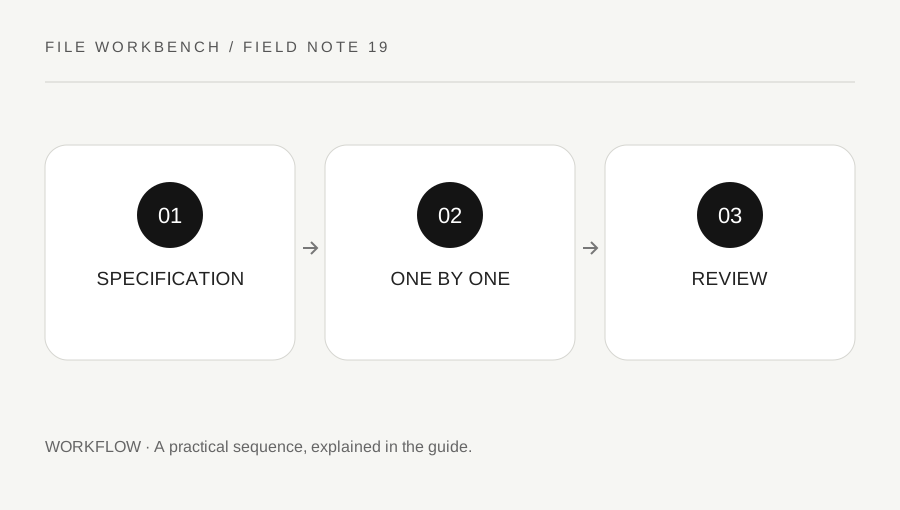
Original explanatory diagram. Numerical examples in this guide illustrate the reasoning; they are not a claim of hands-on testing.
Define the shared output requirement
Write a short specification before starting: permitted formats, maximum dimensions, byte limit and intended use. Decide whether every image needs the same aspect ratio or simply the same maximum box. This workbench preserves each source’s shape, so two differently shaped images can produce different final dimensions inside the same limits.
Keep the original set in a clearly identified location and make derived copies elsewhere. Do not mix already-compressed outputs back into the source selection. If exact crops or backgrounds are required, prepare them in an appropriate editor first. The workbench handles one image at a time; it does not offer a hidden bulk upload or guarantee that one setting will give identical sizes across different pictures.
Use a simple source-to-output list
Record each source filename, intended output name and whether it has passed review. A short checklist is enough for a small set. Use names that identify the image without exposing unnecessary personal information. If every download begins with the same default name, rename the saved copies carefully and check the actual file rather than relying on browser-added numbers.
Choose the first source, apply the agreed settings and inspect its download. Then repeat from the next original. Read the reported dimensions and format each time. A PNG fallback, a portrait shape or an unexpectedly small source may require a different decision. The process should preserve consistency of purpose, not force every image through an unsuitable setting.
Work through a six-image example
Imagine six static images for a website, each required to fit within 1400 pixels on either side and meet a separate upload cap. The user processes them individually from the originals, recording the output size and filename. A portrait image becomes narrower than the landscape ones because the aspect ratio is preserved. That is expected for a fit-inside specification.
One image contains small labels and needs a different format or dimension tradeoff to remain readable. The user reviews that exception rather than lowering quality blindly across the whole set. These example numbers are illustrative, not a recommended universal specification. The right settings come from the destination and the information each image must communicate.
Review the set together before sharing
Open the saved outputs and check that none are missing, duplicated, mislabeled or accidentally selected from the source folder. Compare orientation, visible detail, transparency and any intended visual consistency. A per-file successful conversion does not prove that the set is complete or in the desired order. Review the actual destination preview if available.
Clear the tool when finished and manage saved downloads separately. If the workload becomes large, use an appropriate trusted batch workflow with a small test set and equivalent review rather than treating repeated manual work as a safety guarantee. Keep the source set intact and label accepted outputs clearly. A manageable process should make exceptions visible and reduce mistaken attachments, not just repeat the same button press.
Keep settings notes concise and transferable
Record the bounding box, requested format and quality value where relevant, plus any intentional exception. Do not treat the quality number as a promise of the same bytes or appearance for every image. If someone else continues the work, include a small reviewed example and explain the destination requirement. That handoff is more useful than a vague instruction to make the files smaller. Keep private images and filenames out of a public instruction document unless sharing them is necessary and authorized.
A practical checklist
Tick items for your own use. This checklist is saved only in this browser.
Questions that come up
Can I upload a whole image batch here?
No. The image operation accepts one file at a time. Use an appropriate trusted batch workflow for larger workloads.
Will equal settings produce equal byte sizes?
No. Source dimensions and image content differ. Check the actual output for each file.
Should every output have identical dimensions?
Only if the destination requires it and you use a suitable crop or canvas workflow. Fit-inside resizing preserves each source’s shape.
References & scope
Background references checked on 18 October 2026. The examples and practice exercises are original editorial explanations, not copied procedures or professional advice.