JPEG, PNG or WebP: Choose an Image Format for the Actual Job
The best output format depends on the image and where it will be used. Compare readable detail, transparency, compatibility and file size instead of choosing by extension alone.
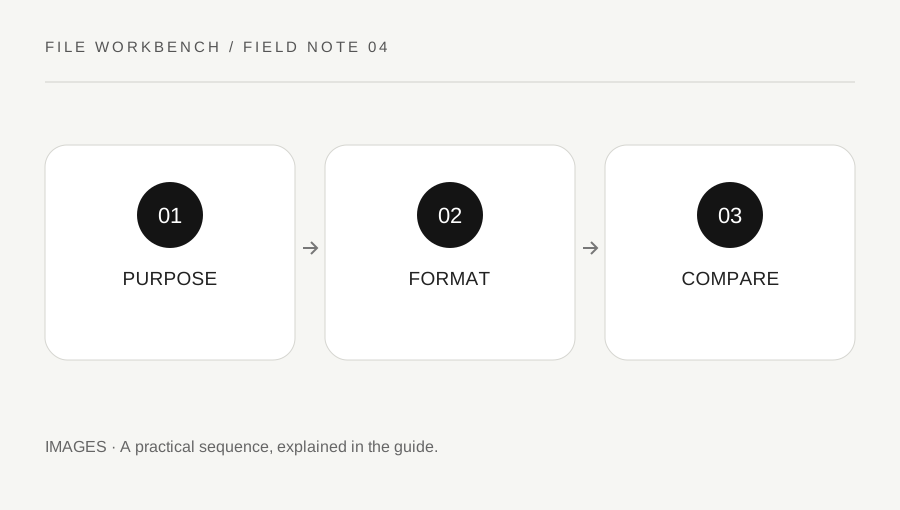
Original explanatory diagram. Numerical examples in this guide illustrate the reasoning; they are not a claim of hands-on testing.
Start with the destination and the content
Find the upload or sharing requirements before converting. A website might accept JPEG and PNG but reject WebP, or impose a pixel dimension limit separate from a byte-size limit. Write down both if they exist. An image that looks fine in your browser can still be unsuitable for a particular form, print service or older application.
Look at the image content. A photograph with gradual color changes presents different tradeoffs from a screenshot full of small text or a logo with a transparent background. Keep the original file and make a new copy for each destination. Converting an already compressed file again cannot restore lost detail, and an unfamiliar extension does not guarantee a smaller or better image.
Match the format to the feature you need
JPEG is a common choice for photographic images when a solid background and broad compatibility are useful. Its quality setting trades file size against visible loss, so inspect edges and texture after export. In this workbench, JPEG output is placed on a white background because JPEG does not preserve transparency. Check that this choice fits the destination before downloading the final version.
PNG is useful when transparency or crisp graphic detail matters. The JPEG-style quality slider is not a meaningful compression control for the PNG export used here; resizing can still change file size and detail. WebP can be useful for compatible destinations and supports transparency, but support should be checked where the file will actually be opened. The tool reports the format the browser produced, including a PNG fallback if an export type is unavailable.
Make a fair comparison
Keep the output dimensions the same when comparing format choices. Otherwise, a smaller file may simply contain fewer pixels, making it impossible to judge the format tradeoff clearly. For each exported copy, note its dimensions and byte size, then open it at the scale the recipient will use. Compare small text, boundaries around a subject and smooth gradients.
Do not judge only from a tiny thumbnail. Compression artifacts can hide until the image is viewed at normal reading size. Equally, avoid enlarging far beyond intended use and rejecting a perfectly adequate web image because of flaws nobody will see at that scale. The practical question is whether this copy serves its purpose with acceptable quality and a suitable size.
Work through two everyday examples
For a photograph going into an online form, start with the required dimensions and try a JPEG copy at a moderate quality. If it meets the limit and looks clear at the intended size, keep that version. If not, adjust one setting at a time and compare again. There is no universal quality number that guarantees a particular byte size for every image.
For a diagram with transparent corners and tiny labels, begin with PNG and inspect the text. A JPEG version would use a white background in this tool and may show unwanted artifacts around the labels. A WebP alternative might work well if the destination accepts it. These are illustrative workflows, not promises that one format will always be smallest for every photograph or diagram.
Check what conversion does not preserve
The browser workbench redraws the visible raster image and exports a new copy. Do not rely on it to preserve original metadata, color-management details, animation, layers or editing information. An animated input may become a still image, so use a static source for this workflow. Preserve the original in an appropriate editor or archive when those features matter.
Open the downloaded file and confirm the visible orientation, dimensions, transparency and actual format. Check that the filename extension matches the type produced. If the result does not meet a professional print, evidential or archival requirement, use a workflow designed for that requirement. For everyday sharing, a clear comparison of the saved copies is more useful than assuming a higher quality setting or a newer format is automatically better.
A practical checklist
Tick items for your own use. This checklist is saved only in this browser.
Questions that come up
Is WebP always the smallest option?
No. The image, dimensions, quality setting and browser encoder all affect the result. Compare saved files rather than assuming a guaranteed reduction.
Why did the background become white?
JPEG cannot retain transparent areas. This workbench intentionally fills them white for JPEG output; choose PNG or a supported transparent format when needed.
Does PNG use the quality slider?
The PNG export here does not use that slider as a lossy quality control. Change dimensions or compare a different appropriate format instead.
References & scope
Background references checked on 18 October 2026. The examples and practice exercises are original editorial explanations, not copied procedures or professional advice.