Merge PDF Files in the Right Order: A Practical Final Check
Combining PDFs is easy to start and easy to mischeck. Make the file order explicit, keep the originals and inspect the merged copy as a new document before sending it.
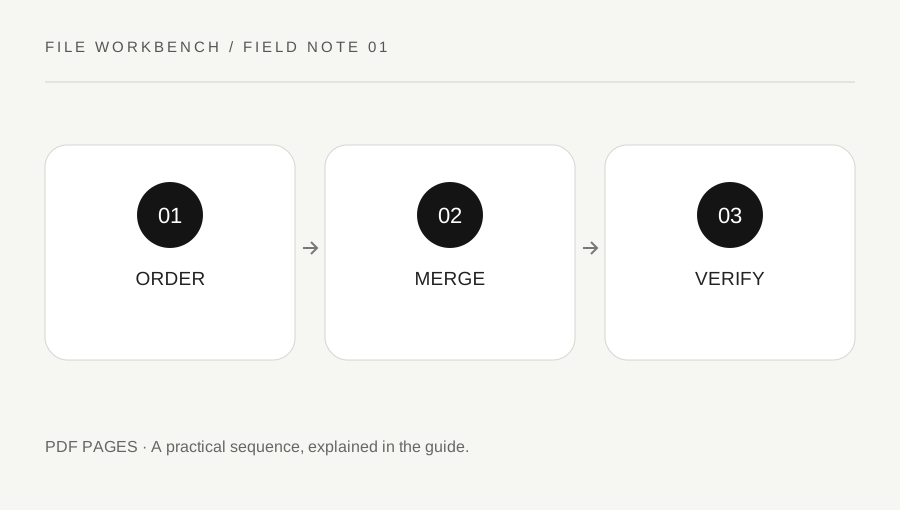
Original explanatory diagram. Numerical examples in this guide illustrate the reasoning; they are not a claim of hands-on testing.
Plan the reading order before selecting files
Write a short order for the finished packet, such as introduction, form, supporting pages and appendix. Give the source files temporary, meaningful names in your own folder if that helps. The order shown by a file picker is not a reliable expression of the order you intended. In the workbench, review the selected list and use its move controls before building the output.
Decide whether every page belongs in the combined document. A file might contain an old cover, blank separator or internal note. Do not merge first and assume the recipient will understand the duplication. If you need only part of a source, create an extracted copy and check it before adding it to the final sequence. Keep the unedited source separately so a later correction does not depend on reconstructing deleted pages.
Check documents that should not be altered casually
A PDF may contain more than visible page content. Forms, bookmarks, attachments, accessibility structure and other document features may not survive page assembly in the same way as the printed-looking pages. This workbench is for straightforward page tasks. If a recipient requires an accessible, interactive or archival document, use an appropriate authoring workflow and verify those requirements explicitly.
Treat digitally signed documents and official submissions carefully. Making a new assembled PDF is a document change; a page that visually resembles the original is not evidence that signatures or certification remain valid. Retain the original signed file and follow the recipient's instructions about separate attachments. The workbench does not validate signatures, certify authenticity or decide whether an assembled document satisfies a legal requirement.
Use the local merge workflow
Choose PDF merge, select the files and inspect their names in the displayed list. Move a file up or down until the list matches your plan, or remove it if it does not belong. Use small, ordinary PDFs for the first attempt. The tool applies file and page limits to reduce the chance of exhausting a browser tab's memory; those limits are not a guarantee that every permitted file will process successfully.
Build the output and download the resulting copy. The tool reads selected file contents in the browser for this operation rather than sending them to a conversion service. That does not make an untrusted or compromised computer safe for confidential work. Use a device and browser you trust, and avoid sharing sensitive material through a machine you do not control.
Work through a simple packet example
Suppose you have a two-page introduction, a three-page form and a four-page appendix. Your expected merged document has nine pages. Place those files in that order and write down the expected starting pages: introduction at one, form at three and appendix at six. These simple checkpoints make the review faster than looking only at the first and last pages.
After downloading, open the new file in a PDF viewer and inspect the boundaries between sources. Check that the form begins where expected and the appendix is complete. Review mixed page sizes and orientations at a readable zoom. A successful download proves that a file was produced; it does not prove that every page contains the right version or that every document feature was preserved.
Name, share and retain the result
Choose a filename that identifies the packet and version without revealing unnecessary personal information. Open the downloaded file from its saved location, rather than relying only on a temporary browser view. Confirm the recipient's size limit and whether separate files are preferred. Merging does not promise a smaller file, because the pages and their embedded images still need storage.
If the output looks wrong, return to the sources and repeat a small controlled test. Do not overwrite the only good copy. Keep the original files until the recipient has accepted the packet and your own retention needs are met. Remove temporary copies from shared download folders when appropriate, remembering that deleting a browser tab is not the same as deleting a file saved on the computer.
A practical checklist
Tick items for your own use. This checklist is saved only in this browser.
Questions that come up
Will merging compress my PDF?
Not necessarily. This tool assembles pages. It does not promise to reduce image data or optimize a PDF to a particular upload limit.
Can I merge a password-protected PDF?
This workbench does not remove encryption or request a password. Use an authorized document workflow for protected material.
Will bookmarks and forms behave identically?
Do not assume so. Check any interactive or structural features you need and retain the original documents.
References & scope
Background references checked on 18 October 2026. The examples and practice exercises are original editorial explanations, not copied procedures or professional advice.