Extract PDF Pages Without Confusing Printed and File Page Numbers
A report can label its first chapter page “1” even when that page is fifth in the PDF. Use the file positions shown in your viewer when selecting pages to extract.
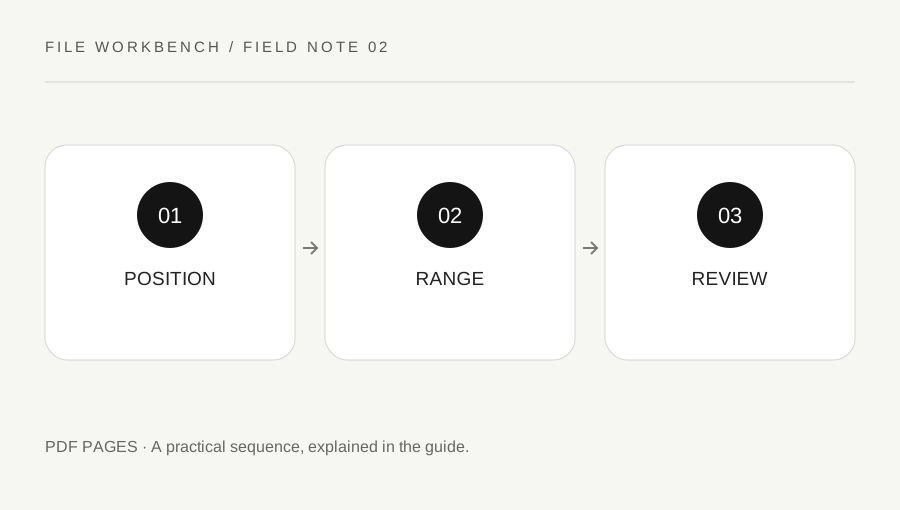
Original explanatory diagram. Numerical examples in this guide illustrate the reasoning; they are not a claim of hands-on testing.
Distinguish page labels from page positions
Open the source PDF in a viewer and find the pages you want. Note their physical positions in the file, counting the first PDF page as one. Printed numbers, Roman-numeral introductions and custom page labels can differ from those positions. The workbench uses physical positions, not numbers printed on the page artwork or labels supplied by a viewer.
For a long document, identify a recognisable heading at the beginning and end of the selection. Write a small mapping beside your range: file page five is the start of chapter one, for example. This is especially useful when a document has a cover, contents pages or inserted updates. Do not rely on a table of contents without confirming the actual page in the version you selected.
Choose a range with a clear purpose
Decide whether the recipient needs the entire section or only selected pages. A single page might refer to a definition, table heading or footnote on an earlier page. Extract enough context for the material to make sense while avoiding unnecessary personal or confidential information. If the original is an official submission, check whether partial extracts are accepted before replacing the complete document.
The workbench accepts selections such as 1-3,5,8-9, using commas between individual positions or ranges. It preserves the order you enter and rejects repeated pages to make accidental duplication easier to spot. For a straightforward excerpt, keep the positions in ascending order. If you intentionally reorder pages, write down that decision and review the new reading sequence carefully.
Build and inspect the extracted copy
Select the extract mode and one PDF, then enter the physical page positions. The tool checks that each requested position falls inside the loaded document. If the range is rejected, inspect the file page count and punctuation rather than repeatedly submitting the same text. Do not type a printed chapter number into the range field when you mean a file position.
Download the new PDF and open it in a viewer. Confirm the total number of pages and read the beginning and end of each extracted segment. Page assembly creates a new document; it is not a guarantee that bookmarks, form fields, accessibility structure or other non-page features are preserved. Use the original authoring application or an appropriate document workflow when those features are essential.
Work through a report example
Imagine a report with a cover, a contents page and two introduction pages before the first numbered chapter. The chapter starts at physical page five, although the artwork says page one. To extract its first three pages, select 5-7, not 1-3. The new output should have three pages beginning with the chapter heading, rather than the cover and introduction.
Now suppose you also need an appendix table at physical page twenty. Enter 5-7,20 and expect four output pages. Check whether the table has a continuation on page twenty-one or notes on the preceding page. The range field can copy exactly the positions you request, but it cannot decide what contextual material a reader needs. That decision remains part of your review.
Treat exclusion and redaction as different tasks
Removing pages from a new copy is useful for making an excerpt, but it is not a general redaction method. Sensitive information may remain on included pages, in annotations or in document properties and other features. This workbench does not inspect a document for confidential data and does not provide a certified sanitization process. Do not share an excerpt merely because the most obvious sensitive page was omitted.
Keep the original intact and label the output as an excerpt when that matters to the recipient. If you discover the wrong pages after sharing, communicate the correction through the appropriate channel rather than assuming a replacement file removes the earlier copy. For legal, regulated or security-sensitive documents, use the organization's approved review and redaction procedure, with a clear record of what was supplied.
A practical checklist
Tick items for your own use. This checklist is saved only in this browser.
Questions that come up
Can I enter Roman numerals?
No. Enter the physical page positions as ordinary numbers, with the first page of the PDF counted as one.
Does extracting delete pages from my original?
No. The selected source is read to produce a new download. Keep and manage the original separately.
Can the same page be requested twice?
This workbench rejects repeated positions to prevent accidental duplication. Build a separately reviewed workflow if deliberate duplicates are required.
References & scope
Background references checked on 18 October 2026. The examples and practice exercises are original editorial explanations, not copied procedures or professional advice.