Rotate PDF Pages Carefully: Fix the View and Check the Saved Copy
A sideways page can interrupt an otherwise readable document. Select the affected positions, apply a quarter turn and verify the downloaded copy outside the tool.
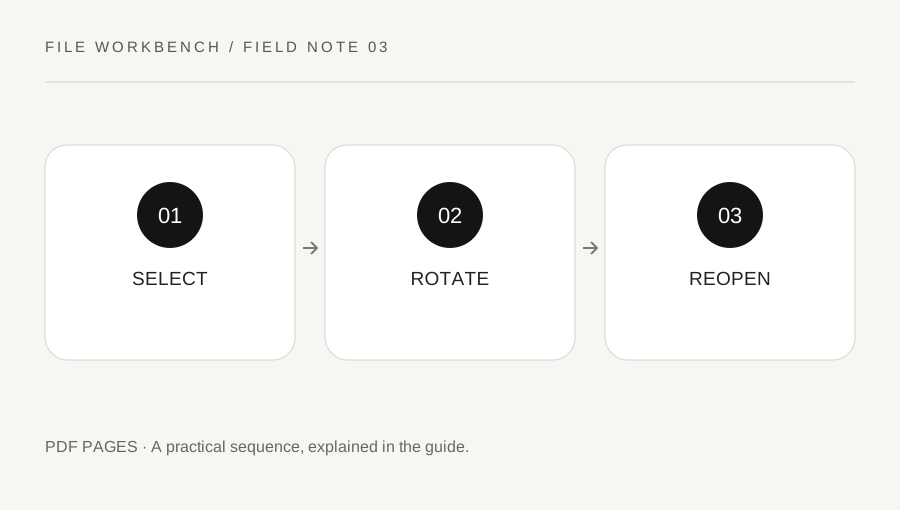
Original explanatory diagram. Numerical examples in this guide illustrate the reasoning; they are not a claim of hands-on testing.
Identify which pages are actually wrong
Open the PDF and inspect it at a comfortable zoom. Write down the physical positions of sideways or upside-down pages, counting the first file page as one. A landscape page is not automatically a mistake: a wide table or diagram may be intentionally laid out that way. Decide whether the reader needs a different orientation or whether the document is already correct.
Check several pages around each problem, especially in a combined packet. A scan may alternate between orientations, while an appendix can have its own layout. Rotating every page to fix one page can make the rest harder to read. Use a short range list and keep the original unchanged so you can return to it if your first choice turns out to be wrong.
Distinguish viewer rotation from a new document
Many PDF viewers let you turn the current view temporarily. That is useful for reading, but it does not necessarily create a new file with the intended page rotation. This workbench builds a new PDF download with a rotation applied to the selected pages. You still need to open that saved output to confirm the effect in your normal viewer.
Choose 90, 180 or 270 degrees clockwise relative to the page's existing rotation. A 90-degree turn is one quarter turn, while 270 is equivalent to three clockwise quarter turns. If the page is already rotated internally, the tool adds the selected angle to its existing rotation. Do not assume a screen preview in another application shows how its page metadata is stored.
Apply the smallest useful selection
Select rotate mode, choose one PDF and enter the affected physical page positions. Leave the range empty only when you truly intend to rotate every page. Select the clockwise angle and build the output. The range parser accepts comma-separated pages and ascending ranges, rejects positions outside the document, and flags duplicate positions so a page is not accidentally listed twice.
Download to a clearly named new file. The tool applies page rotation; it does not straighten a slightly skewed scan, crop a margin, recognize text or repair an unreadable image. Those are separate tasks with different checks. If a page is both sideways and poorly scanned, fix only the issue the current operation can address and evaluate whether the source needs rescanning.
Use a mixed-orientation example
Suppose a ten-page packet has portrait text pages, a correctly oriented landscape table on page six and a sideways scan on page eight. Select only physical page eight. If it needs a quarter turn clockwise, choose 90 degrees, save the output and open it. Check that page eight is readable and page six remains a useful landscape table.
If page eight now appears upside down, return to the original and choose the appropriate alternative angle. Avoid repeatedly rotating an uncertain output without keeping track of the changes. A simple record of source, page positions and angle makes the test reproducible. Check the output thumbnails as well as the full page, because a quick view of the first page can miss an error much later in the packet.
Verify more than the visible first page
Reopen the downloaded PDF from its saved folder and inspect each changed page, plus an unchanged page nearby. Confirm page count, reading order and any required forms, annotations or navigation. A file that opens successfully can still contain the wrong rotation or an unintended range. If the document will be printed, use a small test or a print preview to inspect orientation and scaling.
Keep signed or official source documents separately and follow the recipient's rules before changing them. A visual correction does not establish that a signature remains valid or that the file meets an archival or accessibility requirement. If those requirements matter, use the approved document process. A tidy filename and a short note about which pages were rotated can help the next reader understand the version they received.
A practical checklist
Tick items for your own use. This checklist is saved only in this browser.
Questions that come up
Is a slightly slanted scan fixed by a 90-degree rotation?
No. Quarter-turn rotation changes orientation. Straightening small scan skew is a different image-processing task.
Does a blank range mean no pages?
In this tool, a blank range in rotate mode means all pages. Enter an explicit range when you want only part of the document.
Can I rely on a viewer turning the page?
A viewer may only change your current view. Verify the actual saved output in the application where it will be read or printed.
References & scope
Background references checked on 18 October 2026. The examples and practice exercises are original editorial explanations, not copied procedures or professional advice.