Prepare Website Images from Originals: Check Display Size, Format and Context
A website image should be clear at its intended display size without carrying unnecessary data. Start with the real layout requirement, create a suitable copy and review it in context.
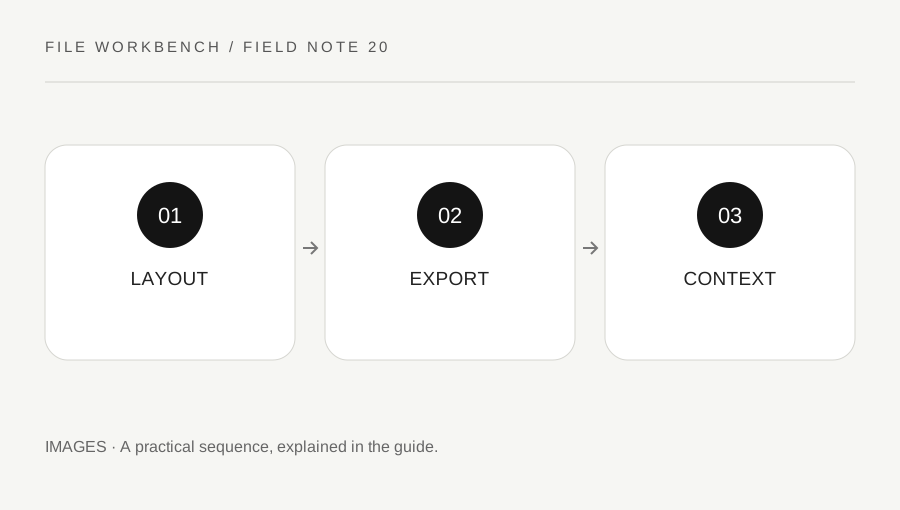
Original explanatory diagram. Numerical examples in this guide illustrate the reasoning; they are not a claim of hands-on testing.
Find the actual display use
Identify where the image will appear: a small card, a wide banner, an instructional detail or a full-size download. Those uses can need different copies. Ask the site authoring workflow for the required dimensions or aspect ratio rather than choosing one large export for every location. MDN’s performance guidance discusses appropriate image sizing and media choices as part of page preparation.
Keep the original intact and distinguish resizing from a deliberate crop. This workbench fits inside a maximum box without changing the aspect ratio or enlarging. If a layout requires a specific crop, prepare that in an appropriate editor first. Do not remove important labels or context merely to make an image fit a decorative slot.
Choose an accepted format and inspect detail
Use a format supported by the actual site workflow and browsers you need to serve. A photographic image, interface screenshot and transparent logo can need different tradeoffs. Compare the saved output at the intended display scale. Check text, edges, transparency and any detail that carries the explanation, rather than judging only a file-size number.
For JPEG or supported WebP export, adjust quality deliberately and read the actual byte size after processing. PNG does not use that control as a lossy quality setting here. A requested format can fall back to PNG if unsupported by the browser, so inspect the tool’s output report. Keep filename and encoded type consistent when placing the asset into the site.
Work through a card-and-detail example
Imagine a tutorial needs a small preview card and a larger instructional image. The author exports each from the original according to the layout’s requirements instead of enlarging the small card copy later. The preview needs a recognizable subject, while the instructional copy must keep its labels readable. These are different uses even if they share one source.
After upload through the site’s approved workflow, the author checks a narrow and wide layout. A page may crop, scale or select another asset in a way that differs from the standalone file view. The workbench does not generate responsive markup or decide the site’s loading behavior. The authoring workflow still needs to connect the right copies to the right contexts.
Review meaning, permission and accessibility
Make sure you are entitled to use the source image and keep any required attribution through the site’s process. Conversion does not create a new permission to publish someone else’s work. Write appropriate surrounding explanation and alternative text according to the image’s purpose; an image that carries essential instructions should not be the only inaccessible source of those instructions.
Check the final page and the actual saved asset before publication. A small file can still be the wrong version or reveal private information in a screenshot. Keep accepted assets clearly named and retain the authorized originals for future revisions. The practical goal is a page image that serves the reader at the intended size, with performance considered alongside clarity and context.
Avoid treating an export as a search-ranking guarantee
A well-sized asset can support a usable page, but conversion alone does not guarantee discovery, traffic or a particular ranking. Focus on whether the image helps explain the content and whether the page uses it appropriately. If performance is a concern, inspect the actual page with suitable site tools rather than assuming the smallest isolated file is always best. Record the source and export settings so a later update can reproduce the accepted copy without repeatedly compressing an already reduced image.
A practical checklist
Tick items for your own use. This checklist is saved only in this browser.
Questions that come up
Does this tool create responsive website markup?
No. It produces an image download. The site authoring workflow must place and serve appropriate assets.
Can I enlarge a tiny card copy for a detail view?
That does not restore source detail. Return to the best available original for the larger copy.
Does a smaller image guarantee more search traffic?
No. It is one aspect of page preparation, not a traffic or ranking promise.
References & scope
Background references checked on 18 October 2026. The examples and practice exercises are original editorial explanations, not copied procedures or professional advice.