A Transparent Image Turns White in JPEG: Choose the Background Deliberately
A transparent background is part of an image’s behavior, not just its appearance in one viewer. Check the destination and inspect edges before choosing a solid-background export.
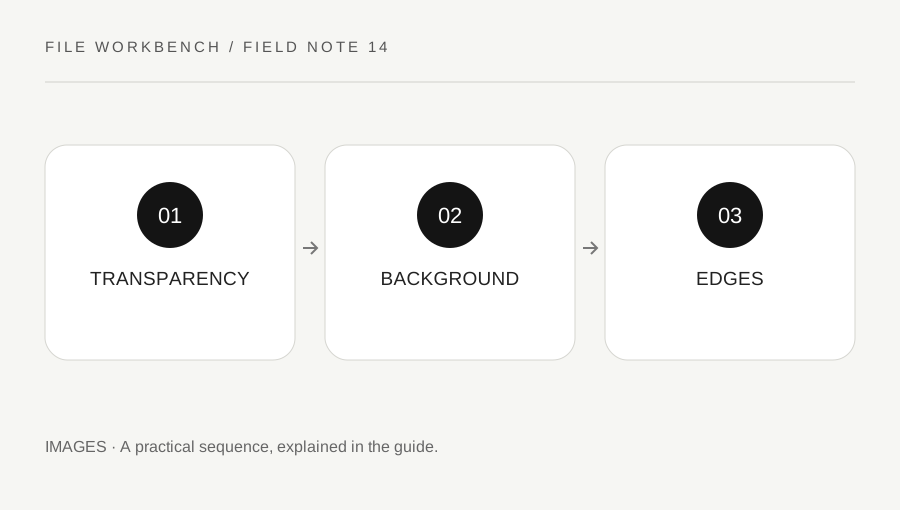
Original explanatory diagram. Numerical examples in this guide illustrate the reasoning; they are not a claim of hands-on testing.
Confirm whether the source has transparency
Open the source in a suitable viewer or editor that can show transparency against a contrasting background. A white-looking canvas does not prove the pixels are opaque white; a viewer may simply display transparent areas that way. Conversely, an image that looks like a cutout can contain an actual white rectangle around the subject.
Keep the original and decide what the destination requires. A logo used on a dark page may need a transparent background, while a form may require a solid white one. This workbench does not remove a background from an opaque image. Selecting PNG preserves the possibility of transparency during export; it does not magically identify and cut out a subject that was never transparent in the source.
Understand the JPEG choice in this tool
JPEG output cannot retain transparent areas. The workbench deliberately fills the image canvas white before drawing and exporting a JPEG, producing a predictable solid background rather than leaving that conversion implicit. If white is inappropriate, choose a supported transparent format or use a suitable editor to prepare the intended background before export.
PNG and supported WebP output can retain transparency from the source. Check that the destination accepts the chosen format and displays it correctly. A file that looks good in the browser may be placed over a different color in the final application. Inspect the downloaded copy rather than assuming the extension alone guarantees the intended visual result.
Work through a logo example
Imagine a transparent logo with dark lettering intended for a pale website header. A PNG export keeps its transparent surroundings, allowing the header color to show through. A JPEG copy from this workbench adds a white rectangle. Both are expected consequences of the chosen output, but only one may fit the design.
Now imagine the logo has pale lettering intended for a dark background. A white JPEG export may make the letters hard to see even though the file converted successfully. The tool does not choose a better brand color or redesign the logo. Return to an appropriate source or editor, prepare the intended background and compare at the actual display size. The example illustrates a compatibility check rather than a universal recommendation for every logo.
Inspect edge artifacts at a useful scale
Look at the boundaries around the subject or lettering on the background where the image will be used. Semi-transparent edge pixels can reveal halos when moved to a different color. Heavy compression can also introduce visible artifacts. Keep dimensions fixed when comparing formats so you know whether the difference came from encoding or resizing.
Review the saved output in the destination if possible, then keep the accepted copy clearly named. Do not overwrite a transparent original with the only solid-background version. If the image needs professional brand, print or production handling, use the appropriate source artwork and workflow. A careful everyday conversion preserves options and makes the background decision explicit rather than discovering it after publication.
Check a checkerboard is not part of the picture
Some screenshots of transparent artwork include a visible checkerboard as actual pixels. Exporting that screenshot as PNG does not turn those squares into transparency. Inspect the real source in an editor that can identify an alpha channel, or obtain the original authorized artwork. Avoid using a preview screenshot as the master when the underlying file is available. This small source check can prevent repeated format conversions that never solve the real issue because the pattern was baked into the image before the workbench received it.
A practical checklist
Tick items for your own use. This checklist is saved only in this browser.
Questions that come up
Can PNG remove a white background automatically?
No. A format choice does not cut out an opaque background. Use an appropriate editing workflow for that task.
Why does JPEG become white here?
The tool fills the output white because JPEG cannot preserve transparency. That behavior is intentional and should be reviewed for your destination.
Does a checkerboard always mean transparency?
No. It may be part of a screenshot. Inspect the actual source rather than a preview image.
References & scope
Background references checked on 18 October 2026. The examples and practice exercises are original editorial explanations, not copied procedures or professional advice.