Fit Inside or Crop? Understand Why Your Image Is Not an Exact Square
A maximum-size box preserves the whole image, while a crop changes what remains visible. Choose the operation that matches the destination instead of treating every dimension mismatch as an export error.
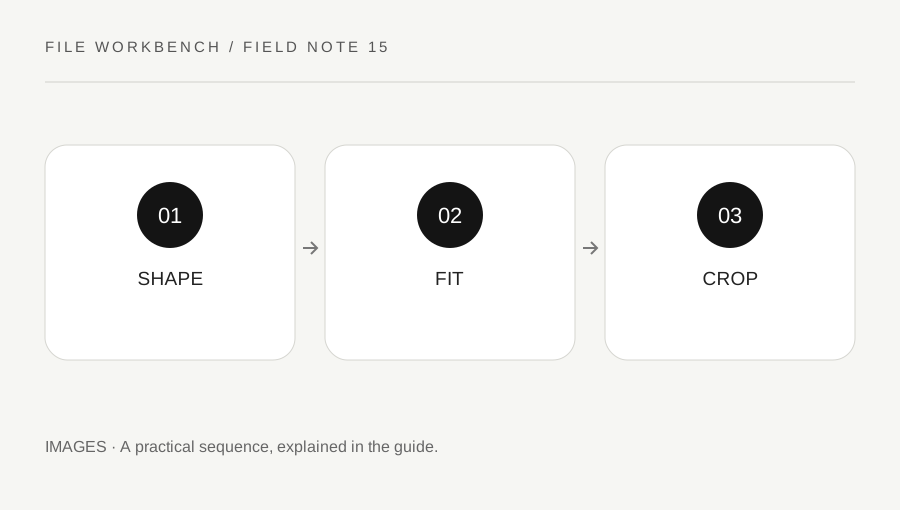
Original explanatory diagram. Numerical examples in this guide illustrate the reasoning; they are not a claim of hands-on testing.
Read the dimension requirement literally
Check whether the destination says maximum width and height, exact dimensions or a required aspect ratio. These instructions are different. A rectangular image can fit inside a square maximum box without becoming square. If a service requires an exact square avatar, a fit-inside resize alone may not satisfy it.
The workbench preserves the source aspect ratio and scales down only. It does not remove parts of the image or add a surrounding border to fill an exact canvas. Keep the original and choose an appropriate crop or canvas workflow elsewhere when that is what the destination requires. Do not stretch the image merely to make both dimension numbers match; that can distort the content.
Calculate the fitted result
For a 3000 by 2000 image and a 1200 by 1200 maximum box, fitting produces 1200 by 800 pixels. The limiting width determines the scale and the height follows the same proportion. Both dimensions are within the maximum, and the complete rectangular image remains. This is an illustrative calculation rather than a default size recommendation.
For a portrait source, the height may be the limiting side instead. The tool also avoids enlargement, so a 600 by 400 source remains that size inside a larger box. A larger maximum cannot create missing detail. Read the actual output dimensions reported after export rather than assuming the bounding-box values are the final width and height.
Choose a crop when composition must change
If an exact ratio is required, use a suitable editor to choose the visible crop before resizing. Inspect important edges, labels, faces or objects that might be cut away. A centered automatic crop may not preserve what matters in your source. Keep enough context for the image’s purpose rather than optimizing only for a shape requirement.
Imagine a document screenshot going into a square preview. Cropping to square could remove essential text, so a different source layout or a supported bordered canvas may be more appropriate. A portrait photograph used as an avatar may support a deliberate square crop. These are different content decisions. The workbench cannot infer which part of the image the recipient needs to see.
Verify the destination’s actual treatment
Open the saved copy and, where appropriate, test it in the destination preview before final submission. Some services apply their own crop, scaling or thumbnail treatment. An image that meets the upload maximum can still be displayed differently on a profile or card. Review the relevant view rather than relying only on the source dimensions.
Keep a clearly named accepted version and preserve the original. If the destination rejects the file, read the exact requirement and error before shrinking again. A format, byte limit or minimum dimension can be the real issue. A useful workflow separates source composition, geometric resizing and destination presentation so each change answers the correct question.
Avoid using repeated screenshots as a resizing method
Taking a screenshot of an already resized preview can introduce browser chrome, background pixels and another uncontrolled scale. Return to the actual source and perform the chosen crop or resize directly. This keeps the dimensions and content easier to inspect. If all you have is a screenshot, treat it as the source you actually possess and do not claim it retains the quality or hidden detail of an original image. Keep each derived version distinguishable so a later revision can start from the best available source.
A practical checklist
Tick items for your own use. This checklist is saved only in this browser.
Questions that come up
Why is a square box producing a rectangular output?
The tool preserves aspect ratio and fits the whole image inside the maximum box. It does not crop or add a square canvas.
Will a larger maximum enlarge my image?
No. This workbench scales down only and does not invent additional source detail.
Should I stretch the image to exact dimensions?
Avoid distortion. Use the appropriate crop or canvas workflow when exact shape is required.
References & scope
Background references checked on 18 October 2026. The examples and practice exercises are original editorial explanations, not copied procedures or professional advice.