Browser-Local File Processing: What to Check Before Using a Tool
Local processing can avoid sending file contents to a conversion server, but privacy also depends on the device, browser and downloaded copies. Understand the workflow before selecting sensitive material.
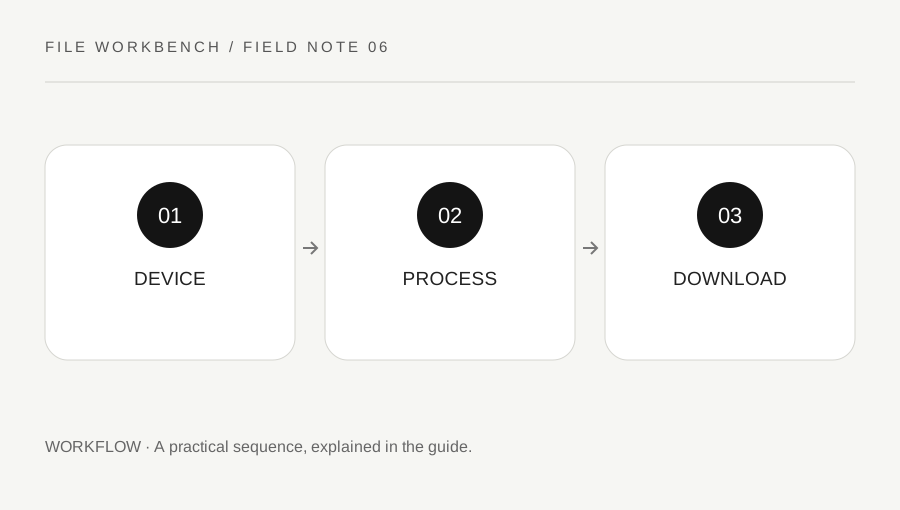
Original explanatory diagram. Numerical examples in this guide illustrate the reasoning; they are not a claim of hands-on testing.
Understand what selecting a file permits
A file picker lets you choose specific files for the page to read. It does not give a site general permission to browse every folder on your computer. In this workbench, the selected content is used by browser-side code for the requested page or image operation. You still need to trust the page, the browser and the device where that code runs.
The statement that a task happens locally is about that processing path. It does not mean that the computer is secure, that a browser extension cannot observe activity or that other people cannot open your download folder. Use a device you control for sensitive work, follow your organization's rules, and avoid selecting confidential files merely because an interface displays a reassuring phrase.
Check that the tool fits the job
Read the supported operations and limits before starting. This workbench handles straightforward PDF merge, page extraction and quarter-turn rotation, plus static raster-image resizing and format export. It does not remove passwords, perform OCR, inspect a document for private data, validate signatures or certify legal compliance. Those missing functions matter more than whether the upload button is easy to find.
Use a small, non-sensitive sample to learn the controls. Confirm the output format, page-selection syntax and file order. If the result loses a feature you need, stop and use a more suitable workflow. Do not send a critical document through repeated transformations while hoping that the final visual appearance will prove every underlying feature has survived.
Expect practical memory and format limits
A browser tab has limited memory and can become slow when it decodes a large image or copies many PDF pages. File size alone is not a complete predictor: an image with modest compressed bytes can expand to many pixels in memory. This tool sets conservative file, pixel and page limits, but even an allowed file may fail because of a device limitation or unsupported content.
If processing fails, keep the originals and read the message before retrying. Do not keep submitting an unresponsive tab while other important work is open. A smaller authorized source may help, but protected or malformed documents need an appropriate document workflow rather than an attempted bypass. Reloading the page clears the tool's current selection; it does not delete files you already downloaded.
Follow a clean download-and-review routine
Choose a destination folder you can find again, and use a filename that distinguishes the processed copy from the original. Open the saved output in an ordinary viewer. For PDFs, check page count, reading order, orientation and required features. For images, check dimensions, file type, visible detail and transparency. A download link is a handoff point, not a quality certificate.
For example, a user might create an extracted four-page PDF for a routine application. The safe review is to open all four pages, confirm the requested material and check for unintended information before attaching it. Leaving the file in a shared downloads folder can expose it even though the conversion itself never used a remote service. Storage and sharing deserve the same attention as processing.
Close the session deliberately
Use the clear control when you are finished, or close the tab. The workbench releases temporary download references when they are replaced or cleared, but browser and operating-system behavior still governs memory and saved files. It does not offer secure erasure. Delete or retain the downloaded copies according to your needs and any applicable organizational policy.
Keep a copy of original material that you are entitled to retain, and avoid overwriting the only working version. On a shared machine, check the download folder and any viewer history before ending the session. For confidential, regulated or legally significant documents, follow the approved environment and process. The most useful privacy habit is to understand each step from source selection to final recipient, rather than trusting a single label in the middle.
A practical checklist
Tick items for your own use. This checklist is saved only in this browser.
Questions that come up
Does clearing the tool delete my downloads?
No. It clears the current selection and temporary download link. Files saved through your browser remain in the location you chose.
Does local processing guarantee confidentiality?
No. Device access, browser extensions, downloaded copies and later sharing still matter. Use an approved environment for sensitive work.
Can the workbench securely redact a PDF?
No. Page extraction and image resizing are not a confidential-data inspection or certified redaction process. Use the appropriate review and redaction tools.
References & scope
Background references checked on 18 October 2026. The examples and practice exercises are original editorial explanations, not copied procedures or professional advice.